
Reset and configuration
Welcome to this guide to the Factory Reset and Configuration pages. They answer three needs: starting again from a clean configuration, wiping a controller before parting with it, and moving a configuration from one box to another.
Prerequisites
Section titled “Prerequisites”- The HAI-P200-4G controller
- HAI-OS
- To wipe it with no network: an HDMI screen and a USB keyboard
1. Which operation should you choose?
Section titled “1. Which operation should you choose?”Four situations, four different answers. This table will save you from erasing more than you need to.
| Your situation | The operation |
|---|---|
| My application configuration has become unintelligible and I want to start over without losing my measurements or my network | Reset application settings (§2) |
| I am returning, reselling or scrapping this controller | Factory reset (§3) |
| The controller is no longer connected to anything and I still have to wipe it | Factory reset from the screen (§4) |
| I am replacing a controller, or I want to duplicate a configuration on a second site | Export then Import (§5 and §6) |
2. Resetting the application settings
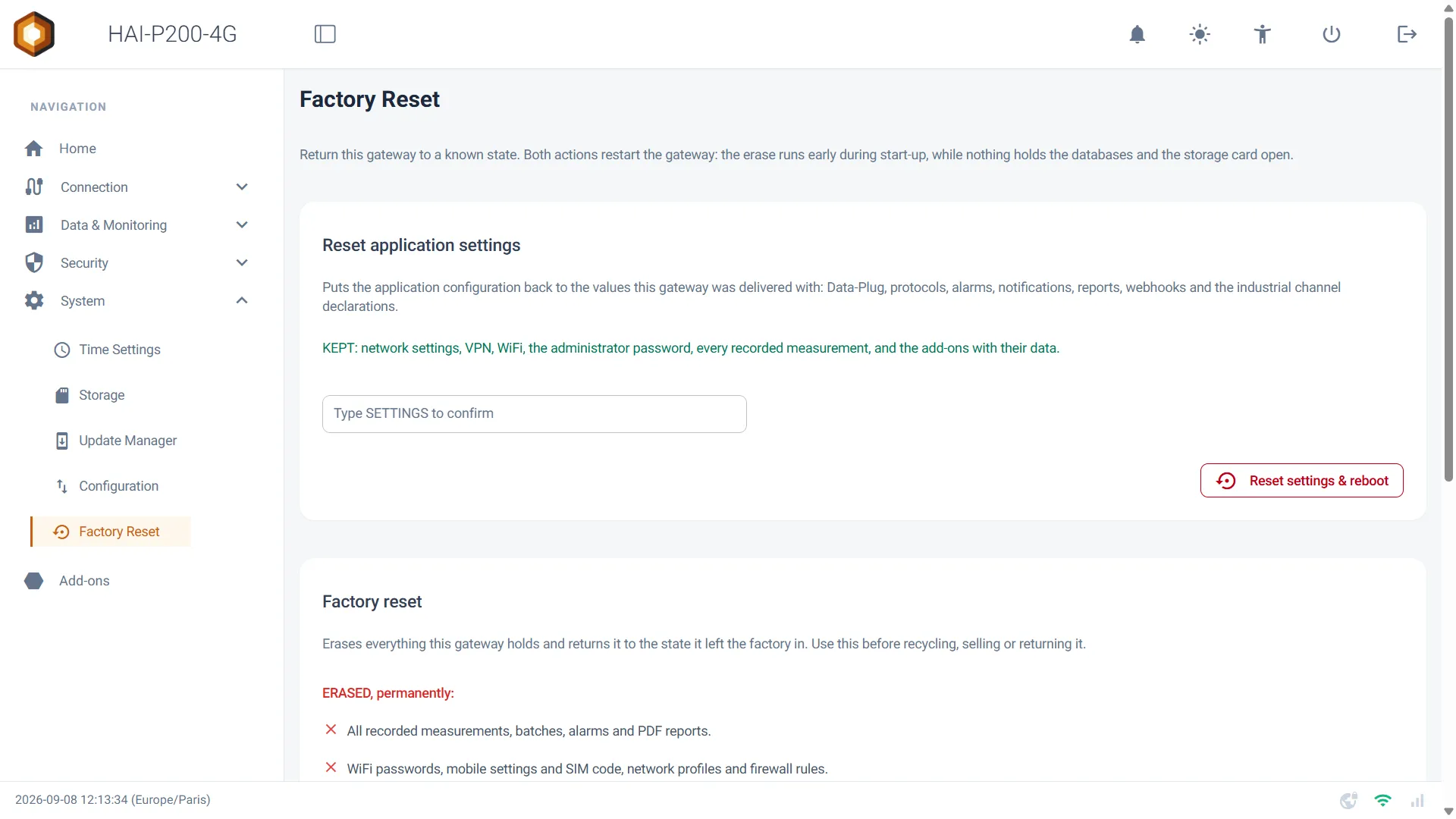
Section titled “2. Resetting the application settings”Go to the System > Factory Reset menu. The first card, Reset application settings, returns the application configuration to its as-delivered state — without touching your network or your data.
Reset:
- The Data-Plug and its protocols
- The industrial variable declarations
- The alarms
- The notifications and the reports
- The webhooks
Kept:
- The network configuration and the WiFi
- The VPN
- The administrator password
- Every recorded measurement
- The add-ons and their data
How to do it:
- Type SETTINGS in the confirmation field.
- Click Reset settings & reboot.
- The controller restarts. The interface is unavailable for a few minutes.
3. The full reset
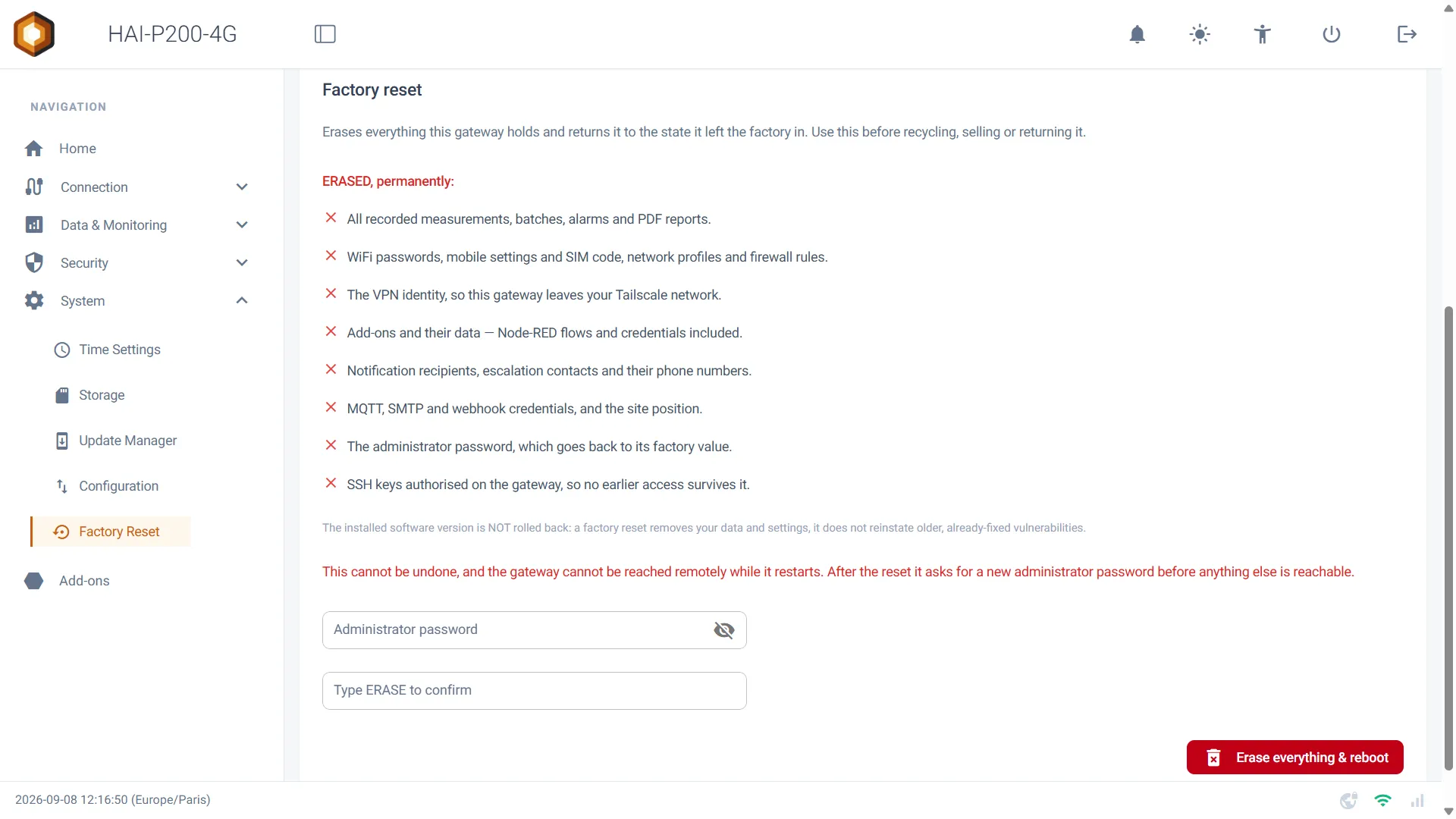
Section titled “3. The full reset”The second card, Factory reset, erases everything the controller holds and returns it to the state in which it left the factory. This is the operation to perform before recycling it, reselling it or sending it back.
What is erased, permanently:
- Every recorded measurement, batch, alarm and PDF report.
- The WiFi passwords, the mobile settings and the SIM code, the network profiles and the firewall rules.
- The VPN identity: the controller leaves your Tailscale network.
- The add-ons and their data — Node-RED flows and credentials included.
- The notification recipients, the escalation contacts and their phone numbers.
- The MQTT, SMTP and webhook credentials, along with the site’s location.
- The administrator password, which returns to its factory value.
- The authorised SSH keys, so that no prior access survives the wipe.
How to do it:
- Type your administrator password. An irreversible operation must not be one click away from a session left open.
- Type ERASE in the confirmation field.
- Click Erase everything & reboot.
- The controller restarts and erases itself. Allow a few minutes.
- When it comes back, the administrator password has returned to its factory value: log in with
admin/hai1@. The controller then asks you to choose a new administrator password before giving access to anything.
After the restart, a message confirms that the operation went through. If a step failed, the message names which one: a reset reported as a blanket failure would not tell you whether your data was really erased.
4. Wiping a controller with no network
Section titled “4. Wiping a controller with no network”The moment you wipe a box is precisely the moment you have unplugged it from everything: a return to the supplier, a resale, a trip to the scrapheap. A button in the web interface is no use then.
Plug an HDMI screen and a USB keyboard into the controller. The screen no longer shows a login prompt, but a dashboard:
  HAI-P200-4G   hai-93132f   v1.3.8  --------------------------------------------------------------------
  NETWORK
  Ethernet 1 (WAN)     192.168.60.23/24     up  Ethernet 2 (LAN)     192.168.1.16/24      up  WiFi                 192.168.130.36/24    up   << ClientNetwork >>  Mobile 4G            --                   down  VPN Tailscale        100.101.64.109       connected
  DNS                  8.8.8.8, 8.8.4.4  Web interface        https://192.168.1.16/
  --------------------------------------------------------------------  R  Refresh this screen  F  Factory reset - erase everything on this gateway,     before recycling, selling or returning it  Alt+F2  Login prompt (for an engineer)
That screen gives you each interface’s address, the DNS servers and the address of the web interface — also handy when you are simply looking for the address at which to reach a controller.
The F key opens the erasure screen. It first states how to proceed, then lists what will be destroyed:
- You type ERASE and press Enter.
- The controller restarts and erases itself.
- It then asks for the factory credentials again (
admin/hai1@), and has you choose a new administrator password.
5. Exporting the configuration
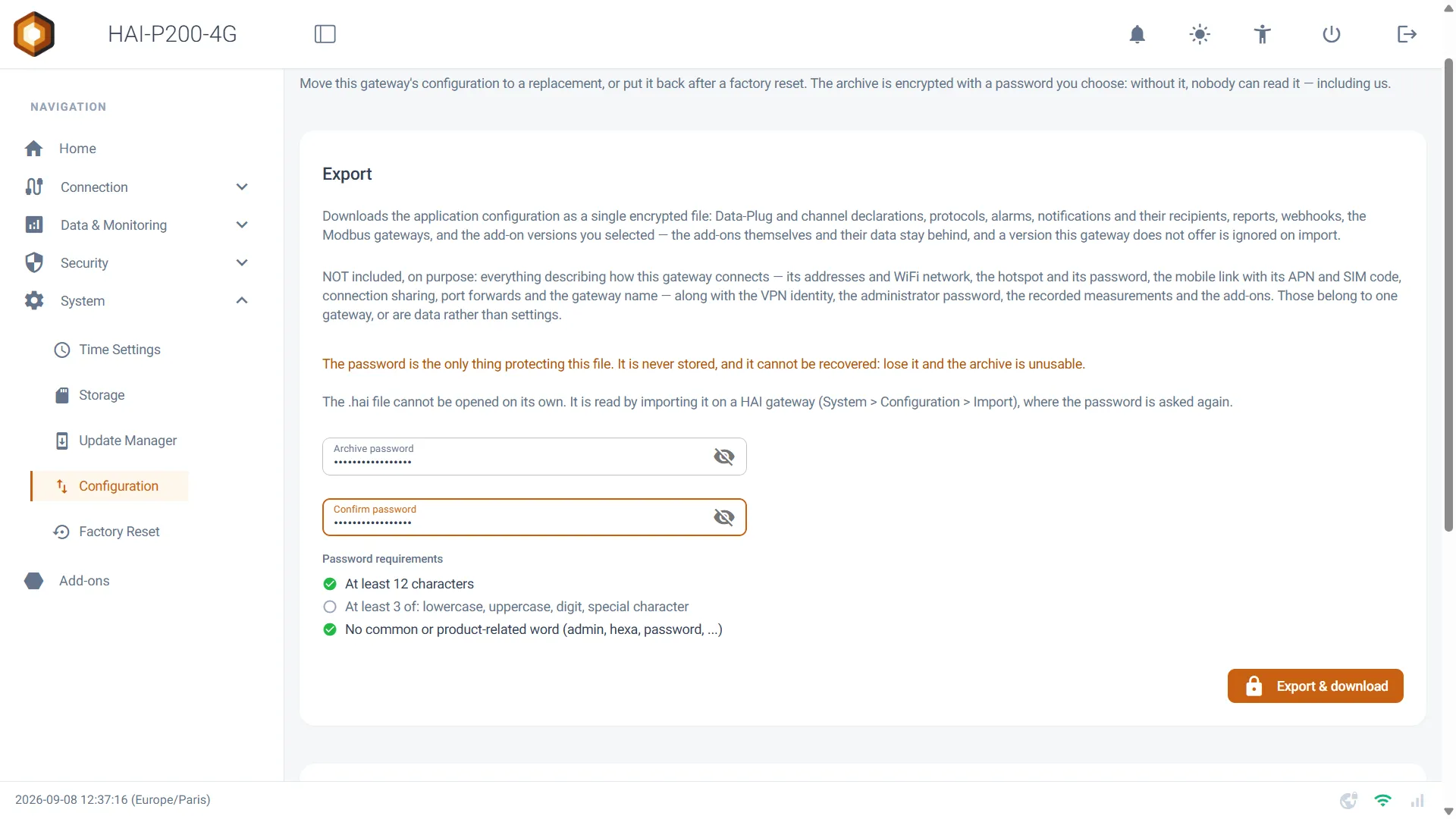
Section titled “5. Exporting the configuration”Go to the System > Configuration menu. The Export card downloads the application configuration as a single encrypted file, with the .hai extension.
What travels:
- The Data-Plug and the variable declarations
- The configured protocols
- The alarms
- The notifications and their recipients
- The reports
- The webhooks
- The Modbus gateways
- The selected add-on versions
What stays put:
- The network addresses and the WiFi
- The access point and its password
- The mobile link, the APN and the SIM code
- Connection sharing and port forwarding
- The controller’s name
- The VPN identity
- The administrator password
- The recorded measurements and the add-ons themselves
That separation is deliberate: what describes how a controller connects belongs to it alone, and importing it elsewhere would put two devices in conflict on the same network.
How to do it:
- Choose an archive password and type it twice. It obeys the same rules as the administrator password: at least 12 characters and three character families. The rules are ticked off as you go.
- Click Export & download.
- The .hai file is downloaded to your computer, and a message tells you how many configuration files were exported.
6. Importing a configuration
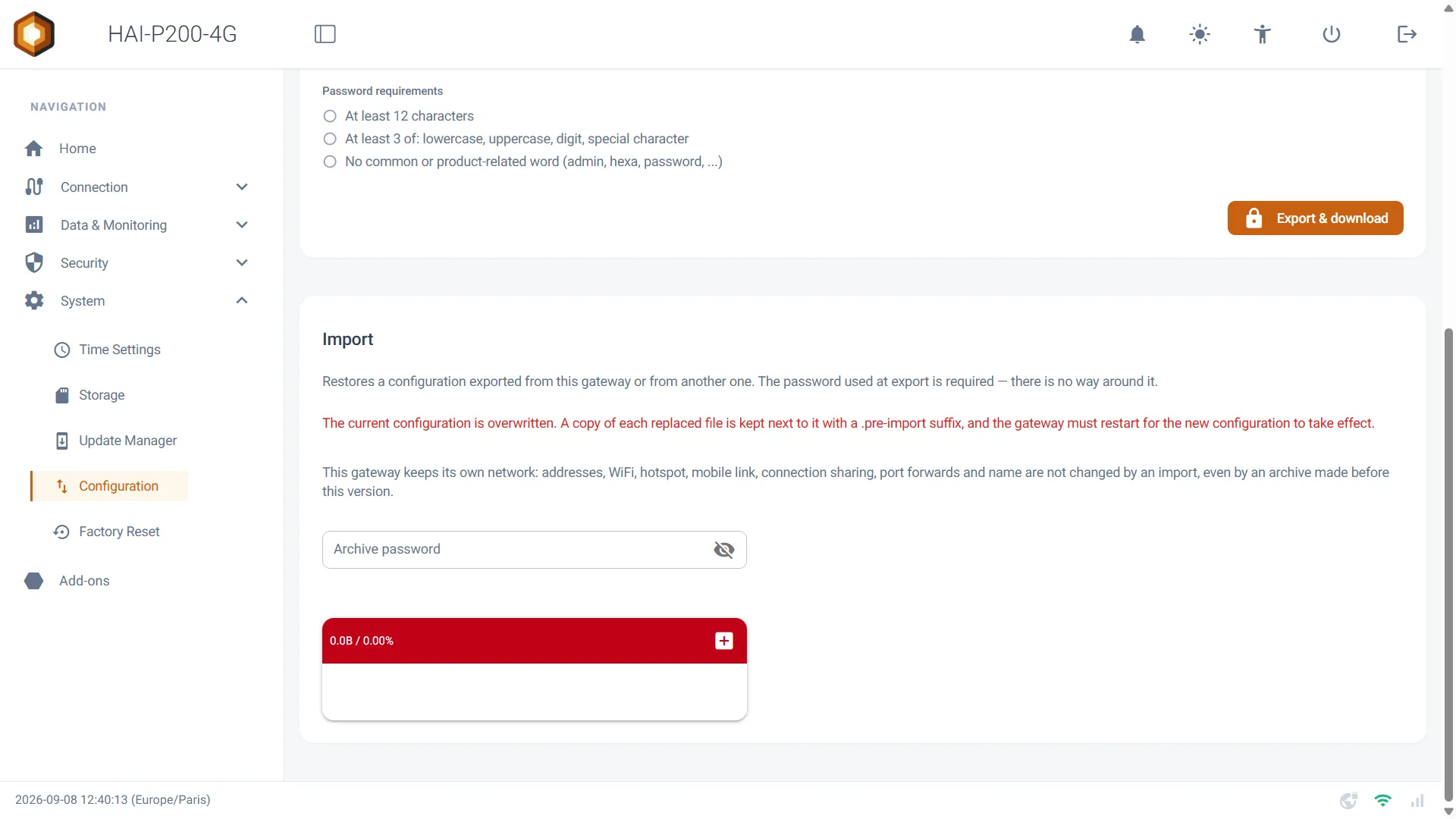
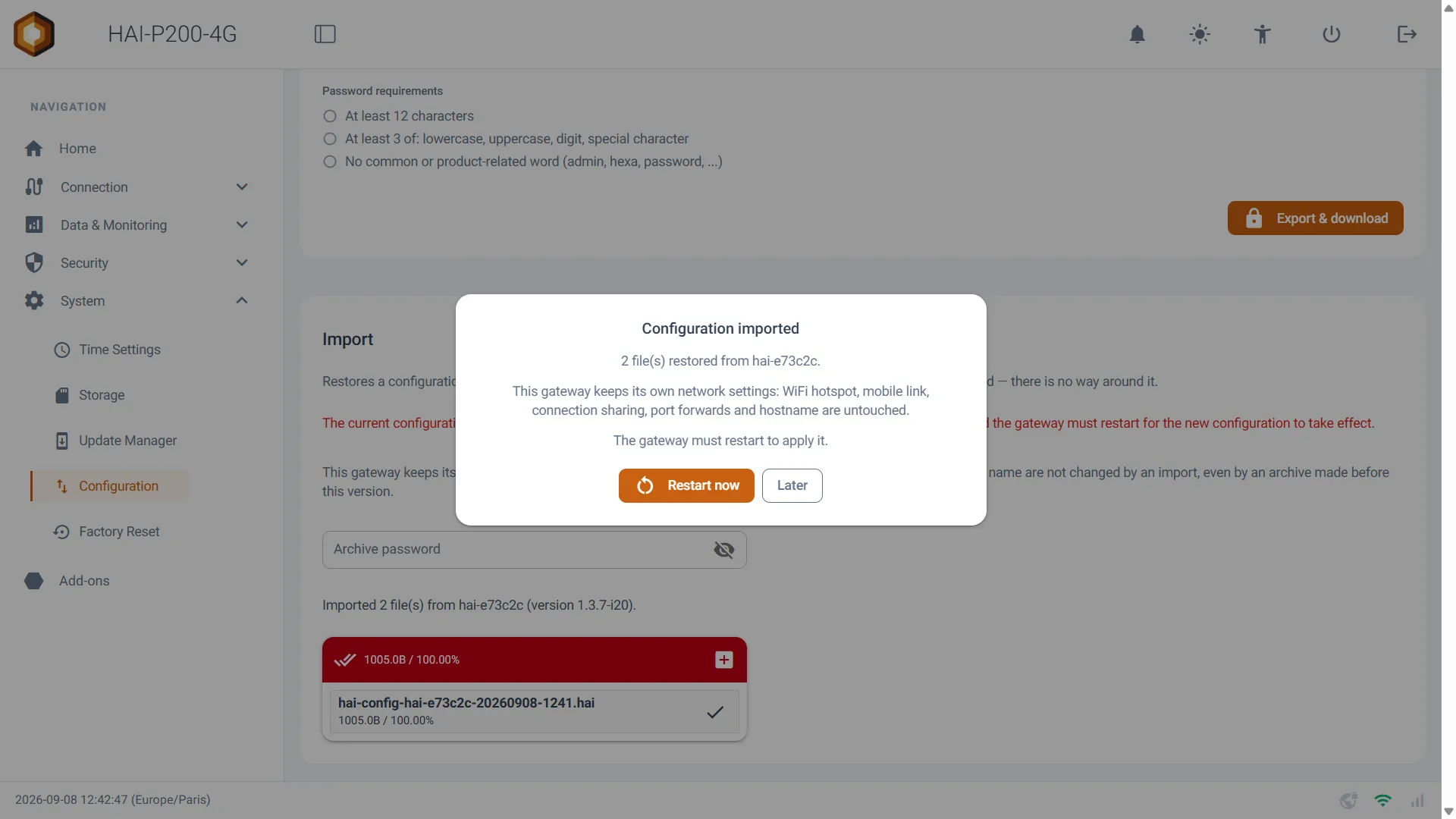
Section titled “6. Importing a configuration”The Import card, on the same page, restores a configuration exported from this controller or from another one.
How to do it:
- Type the archive’s password — the one chosen at export time. There is no way around it.
- Drop the .hai file into the upload area.
- A window confirms the import and tells you how many files were restored, and which controller they came from.
- Click Restart now to apply the configuration, or Later if you would rather pick the moment.
7. A practical case: replacing a controller
Section titled “7. A practical case: replacing a controller”This is the most frequent use of both pages together.
- On the old controller, if it is still reachable: System > Configuration > Export, choose a password, download the .hai file.
- On the new controller: perform the first setup (choosing the administrator password), then configure its network — addresses, WiFi or 4G — because that part does not travel.
- Still on the new one: System > Configuration > Import, type the archive’s password and drop the file in.
- Restart the controller.
- Reconnect the Tailscale VPN with a new authentication key: the VPN identity does not transfer.
- Reinstall the add-ons you need from the Add-ons menu. Their data is not in the archive.
- On the old controller, before parting with it: perform a full reset (§3), or the erasure from the screen (§4) if it is already unplugged.
8. Points to watch
Section titled “8. Points to watch”- An export is not a backup of your data. It contains your settings, not your measurements.
- The archive password cannot be recovered. That is the flip side of an encryption whose key we do not hold.
- Both resets go through a restart. Plan for a few minutes of unavailability, and for someone on site if the controller drives an installation in production.
- The HDMI screen allows erasure with no password. Treat physical access to the controller as privileged access.