Batch management
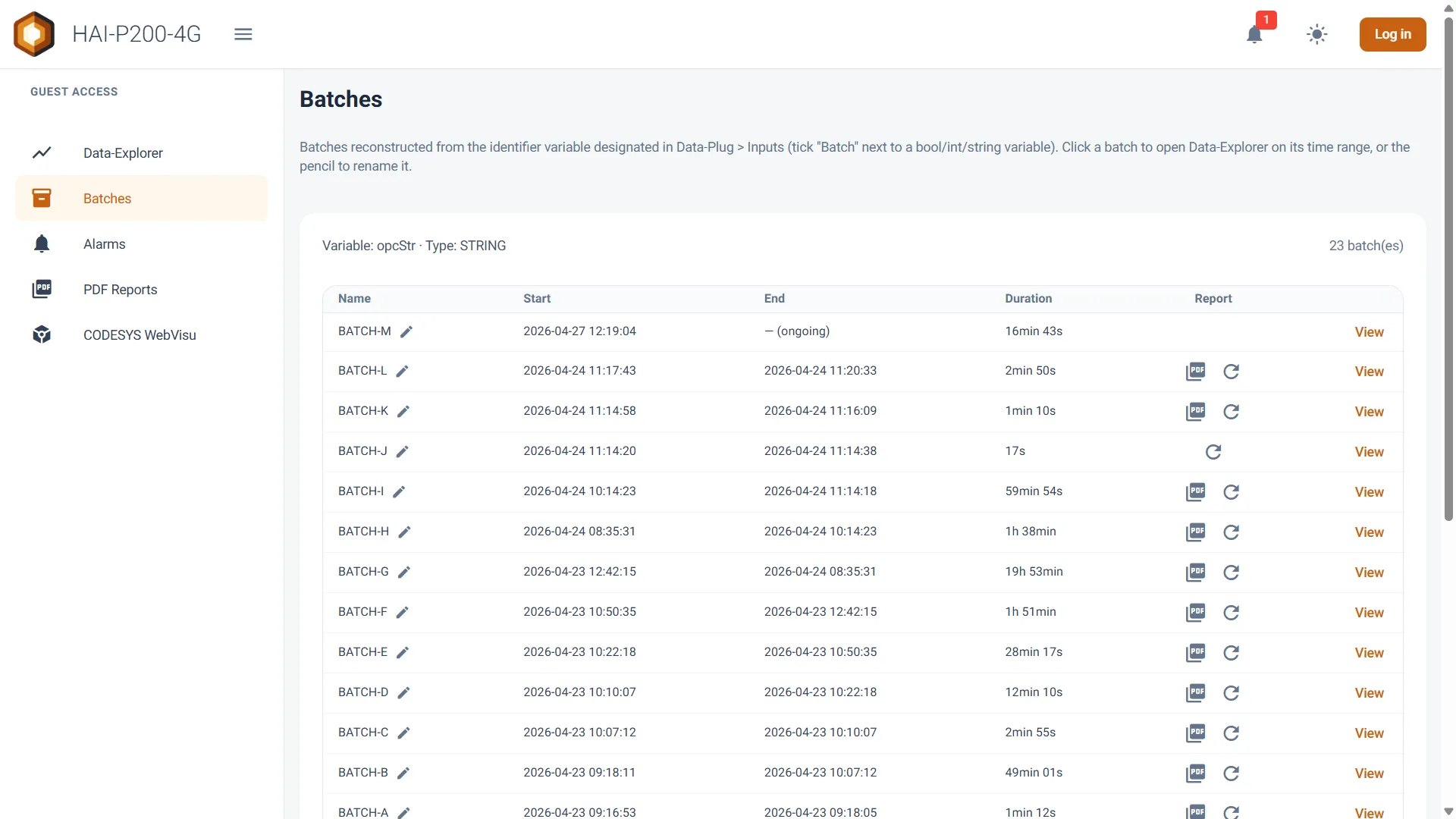
Welcome to this guide to the Batches page. This module isolates, tracks and documents your production cycles (batches). It centralises your batch history, lets you analyse each one individually in the Data-Explorer, and handles the generation of end-of-batch reports (PDF).
Prerequisites
Section titled “Prerequisites”-
The HAI-P200-4G controller
-
HAI-OS
-
A variable specifically designated as the batch identifier in the Data-Plug.
What is the Batches module?
Section titled “What is the Batches module?”The Batches module automatically rebuilds the history of your production batches from the value changes of a key variable (the batch identifier). The system adapts its behaviour to the type of that variable:
-
Boolean (0/1): a batch is the period during which the machine is running (value 1 or True). Periods at 0 are not treated as batches.
-
Integer (INT) or Text (STRING): every new, different value marks the start of a new batch (for example, recipe number “120” becoming “121”, or barcode “LOT-A” becoming “LOT-B”).
Defining the batch variable (Batch ID)
Section titled “Defining the batch variable (Batch ID)”Before the Batches page can fill up, you have to tell the system which variable to listen to:
-
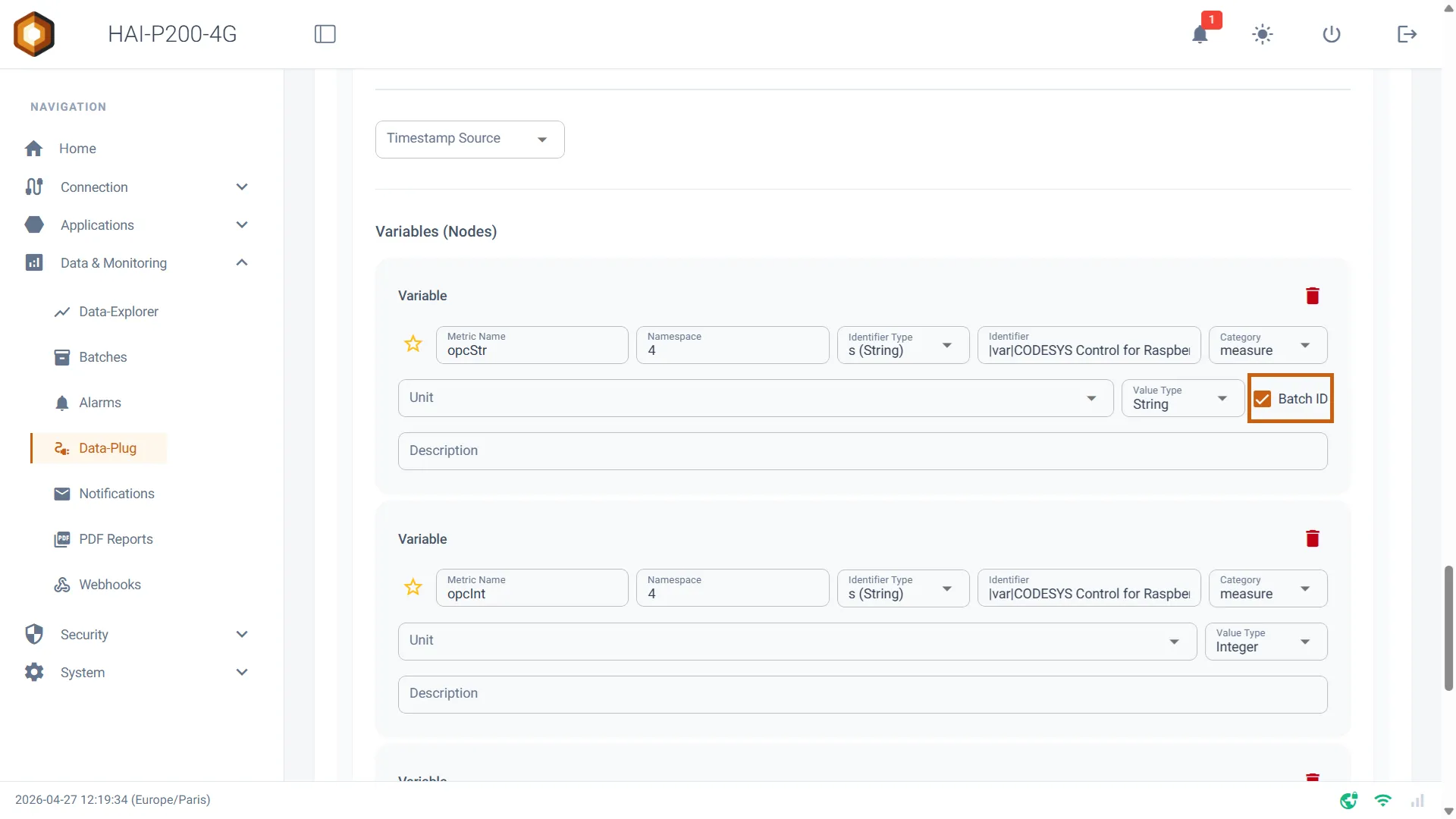
Go to the Data-Plug > Configuration menu.
-
In your equipment’s settings (Modbus, S7 or OPC-UA), find the variable that will serve as the reference for your batches.
-
Tick the Batch ID box on that variable’s row. (Note: only one variable can be defined as the Batch ID on the whole controller. Ticking this box on a new variable clears it on the previous one.)
Interface and batch tracking
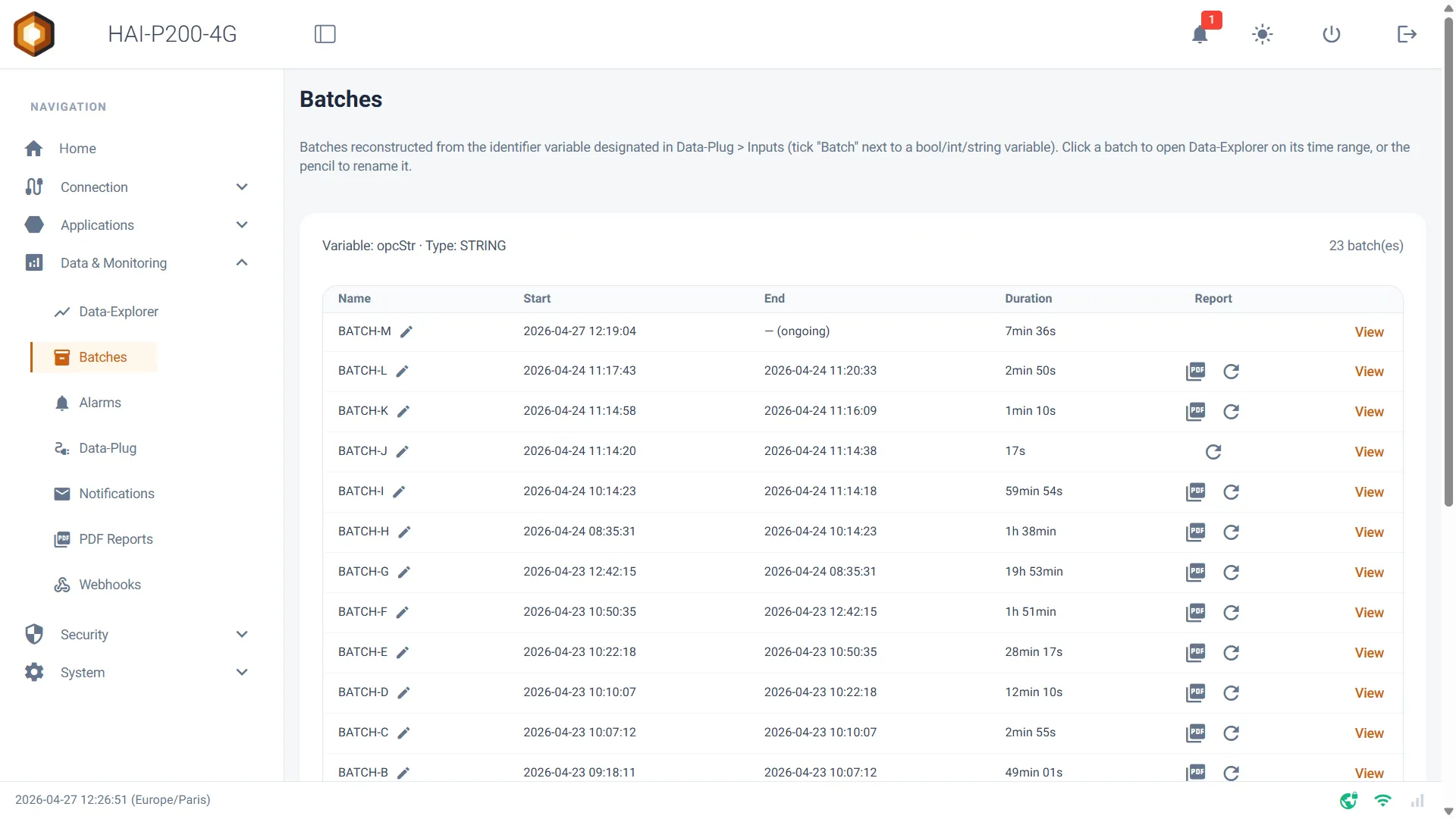
Section titled “Interface and batch tracking”Once configured, the Batches page shows a dashboard listing the batches of the last 30 days, from the most recent to the oldest. It contains:
-
Name: the value of the batch identifier. If the variable is a boolean, the name is empty by default.
-
Start & End: the exact start and end dates and times of the batch. If production is still running, (ongoing) is shown.
-
Duration: the exact duration of the batch, computed automatically.
-
The edit button (✏️): next to the batch name, a small pencil lets you rename a batch by hand to make it easier to identify later (for example, naming a boolean cycle “Morning production”).
Analysing a batch in the Data-Explorer
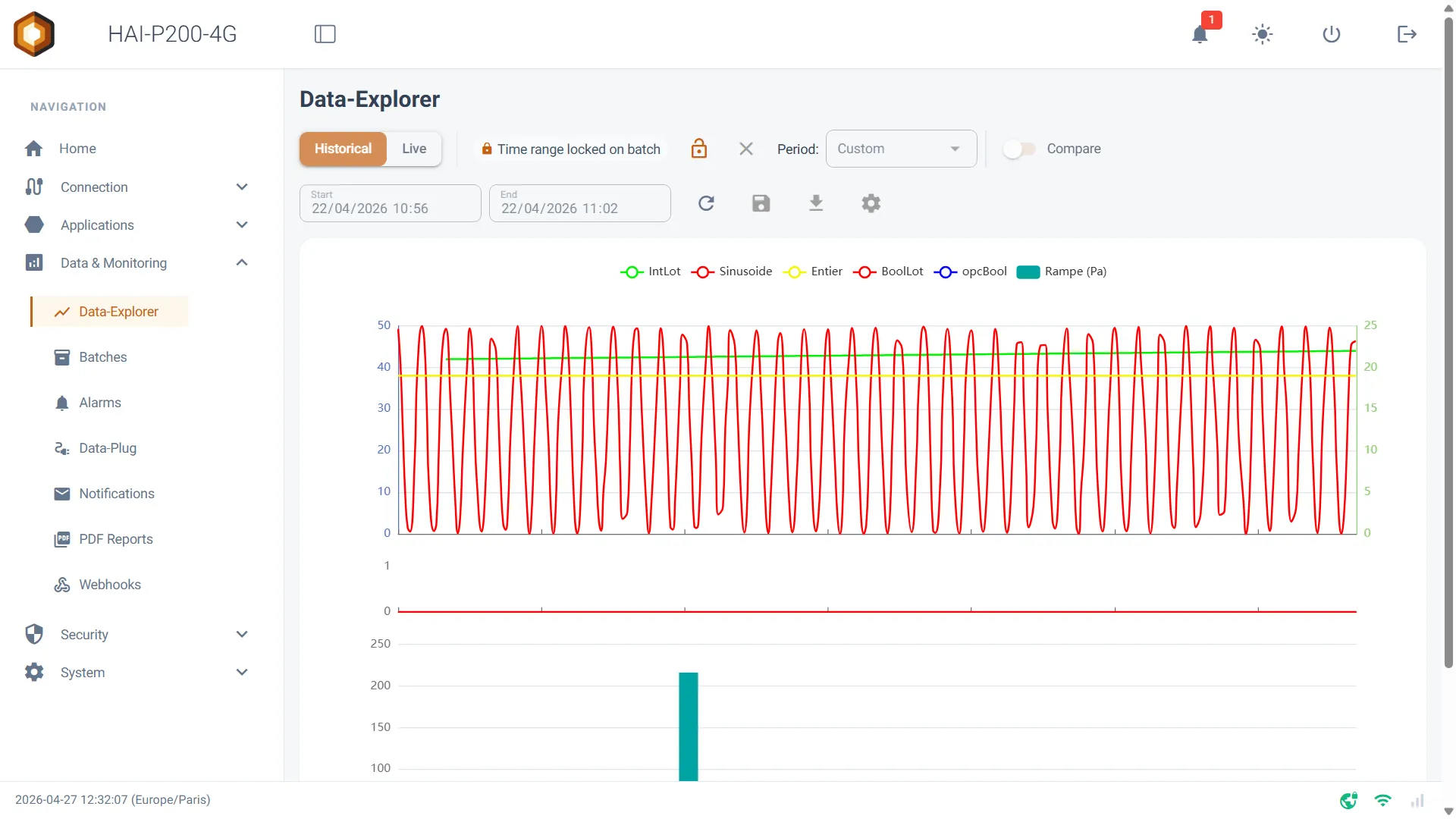
Section titled “Analysing a batch in the Data-Explorer”The strength of the Batches module lies in how tightly it integrates with the charting tool:
-
In the right-hand column, click a batch’s View button.
-
You are taken straight to the Data-Explorer, which opens locked on the exact period of the batch (from its start to its end).
-
A “🔒 Time range locked on batch” indicator confirms that you are looking at the data for that specific production cycle.
Generating and consulting reports (PDF)
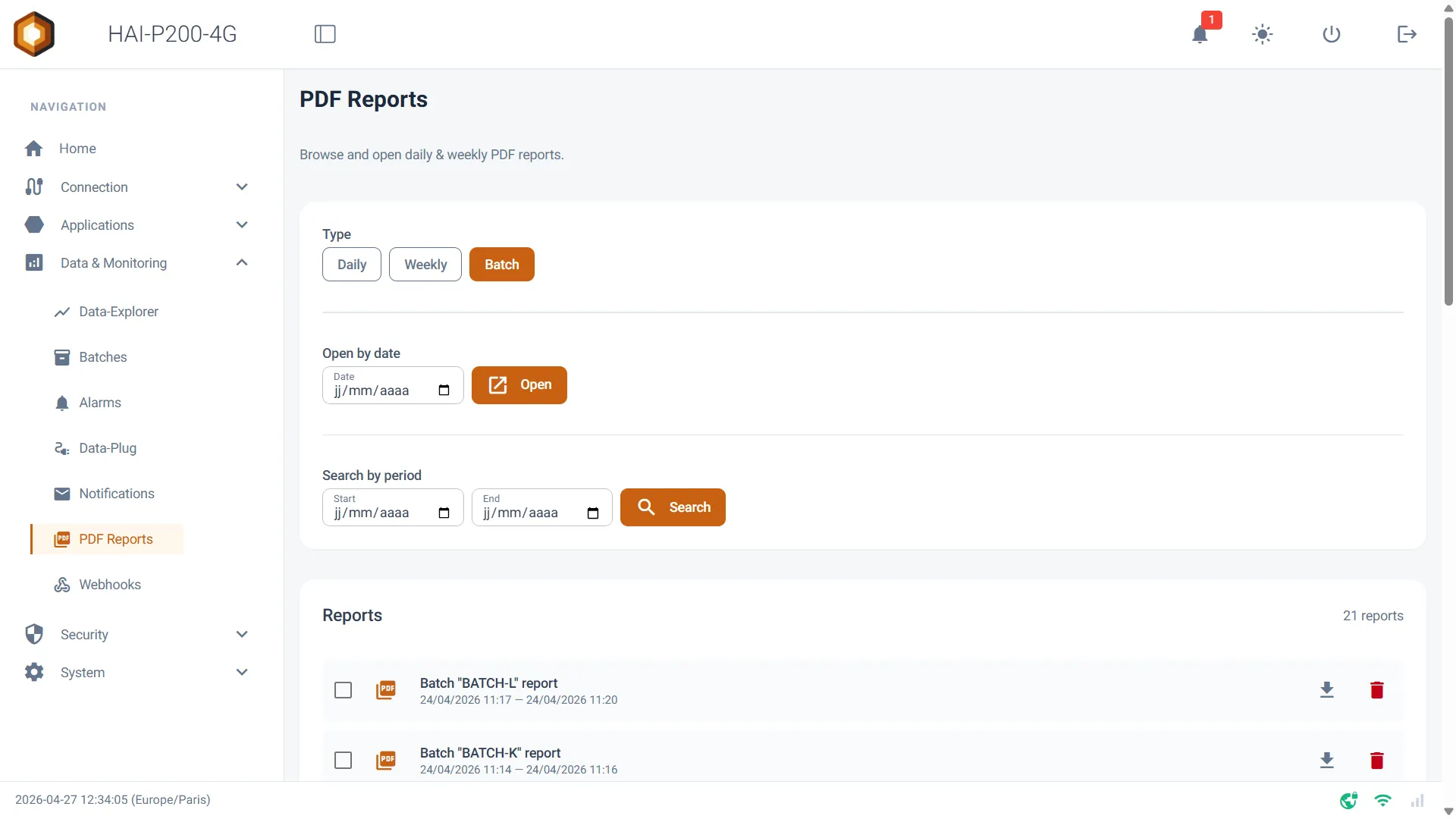
Section titled “Generating and consulting reports (PDF)”If you have enabled batch reports in the system configuration (through the Notifications page), a PDF report is generated at the end of each cycle. In the Report column of the table:
-
PDF button (📄): opens the end-of-batch report directly in a new tab.
-
Refresh button (🔄): if the report has not been generated, or if you want to recreate it after adding new curves to your configuration, click this button to force a manual (re)generation.
Guest access
Section titled “Guest access”Like the Alarms and Data-Explorer pages, the Batches page works in open-access mode. If you want an operator to consult the batch list or open their PDF reports without holding configuration rights:
-
Go to the Security > Password Manager menu.
-
Turn on the Enable Guest Access switch.
-
From the login page, the ← Guest Access button then gives safe access to the Batches module.