
Guest access
Guest Access opens part of the controller’s interface to unauthenticated users. Your operators, maintenance technicians or visitors can consult the data, the alarms and the reports without a password, and with no risk of altering the controller’s configuration.
Prerequisites
Section titled “Prerequisites”- The HAI-P200-4G controller
- HAI-OS
- Administrator access (the admin user) to enable and configure the mode
How it works
Section titled “How it works”By default, every page of the controller requires authentication. When Guest Access is enabled, an allow-list of pages becomes reachable without credentials. Any attempt to reach a page outside that allow-list is automatically redirected to the first authorised page: a guest can therefore never reach the configuration pages, even by typing the URL straight into their browser.
Enabling Guest Access
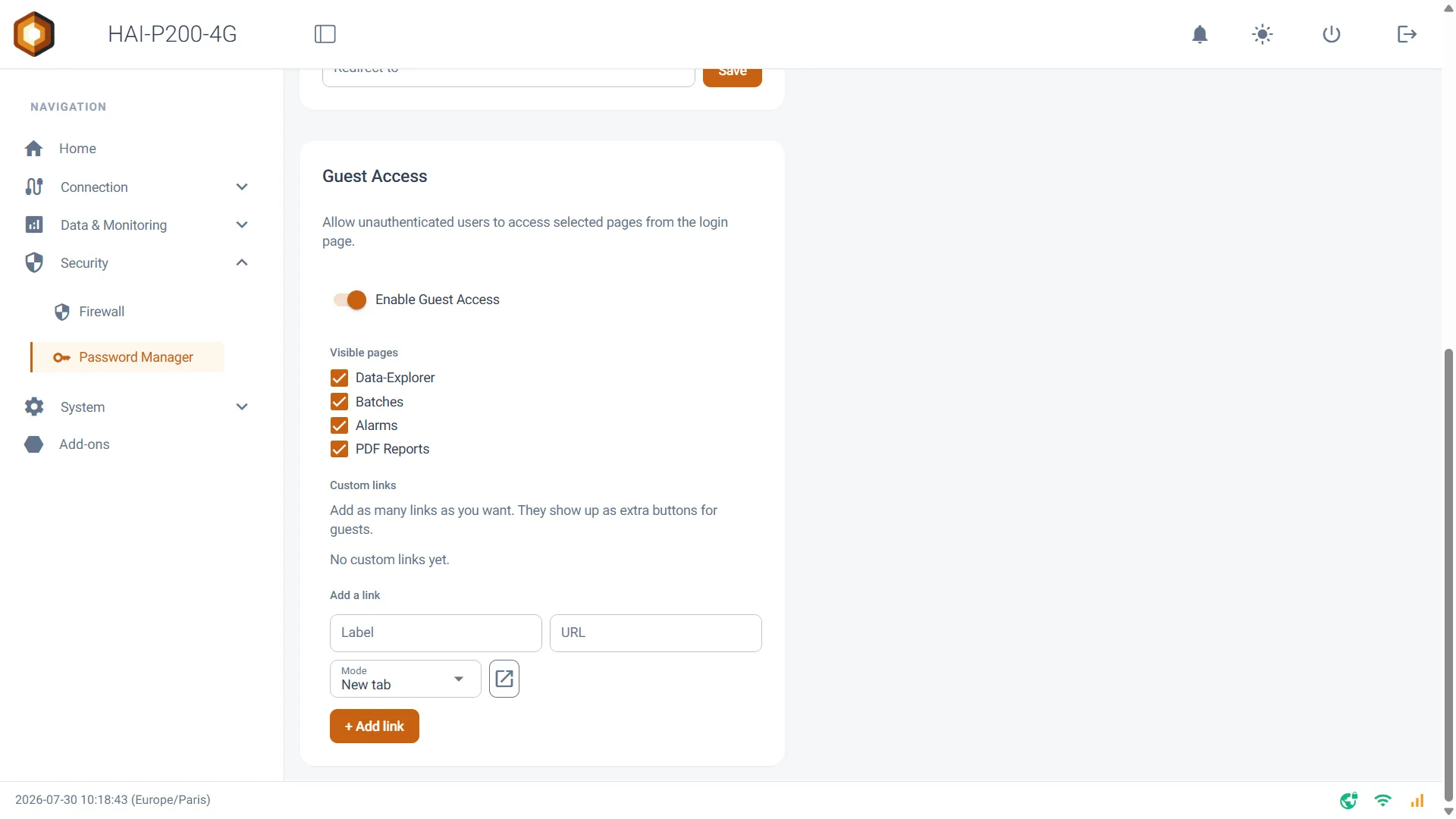
Section titled “Enabling Guest Access”Go to the Security > Password Manager menu. The Guest Access section is at the bottom of the page.
Turn on the Enable Guest Access switch. The detailed configuration options (visible pages and custom links) only appear once that switch is on.
Choosing the visible pages
Section titled “Choosing the visible pages”Under the Visible pages heading, tick the pages you want to expose to guests. Four pages are available, all enabled by default:
- Data-Explorer: consulting and charting historised data
- Batches: production batch tracking
- Alarms: live and historical alarm monitoring
- PDF Reports: consulting and downloading generated reports
You can enable just one of them. Ticking only Alarms, for instance, restricts guests to alarm monitoring.
Adding custom links
Section titled “Adding custom links”The Custom links section lets you add as many links as you like to the guest menu, pointing anywhere: a PLC’s HMI, a third-party dashboard, internal documentation, an IP camera…
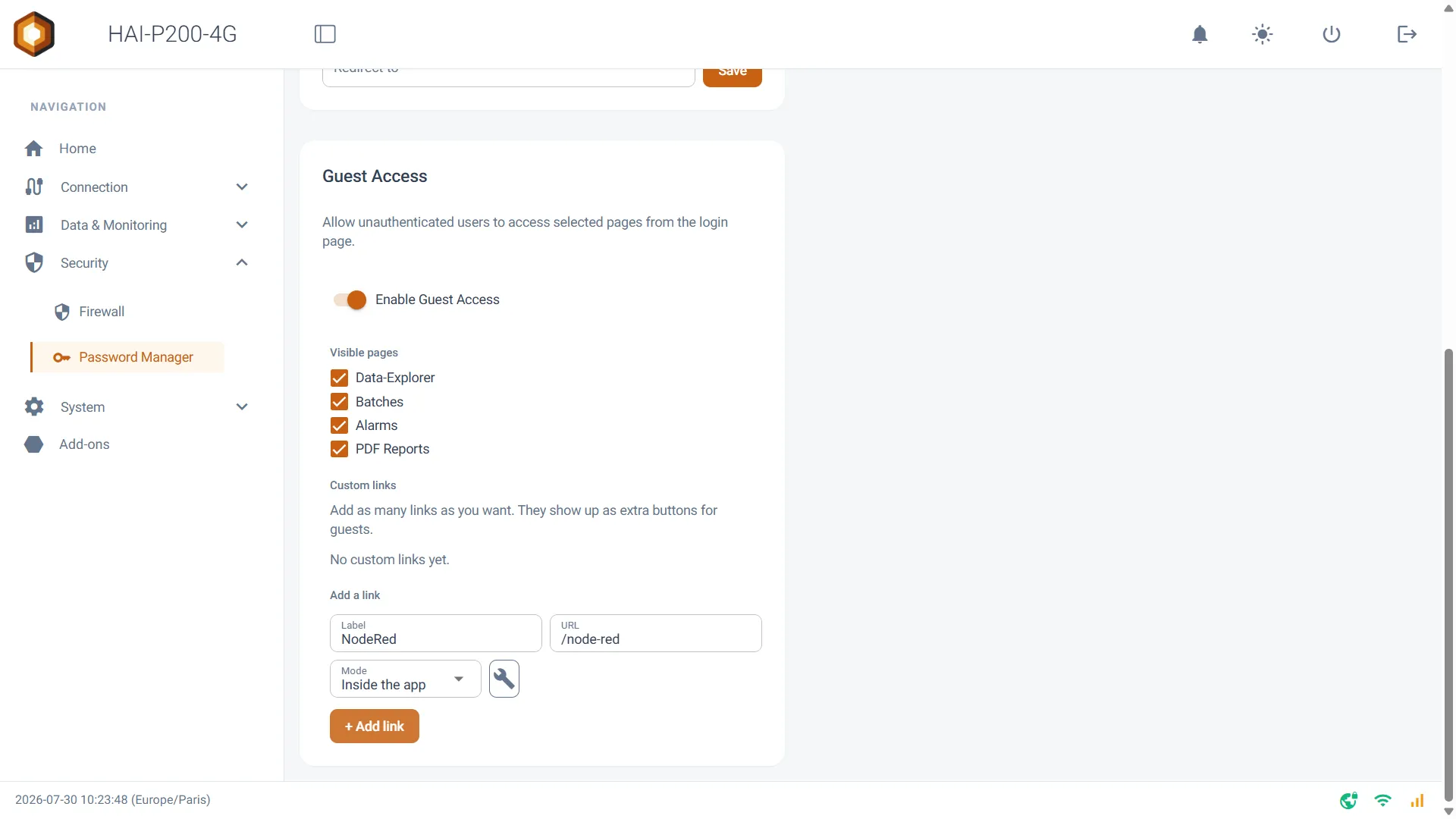
To create a link, fill in the Add a link row:
-
Label: the name shown in the guest menu (required)
-
URL: the target address, for example https://… (required)
-
Mode: determines how the link opens
- New tab: opens the address in a new browser tab
- Inside the app: shows the target page embedded directly in the controller’s interface, keeping the header and the guest menu around it
-
Icon: click the icon button to choose the pictogram shown in the menu
Then click + Add link.
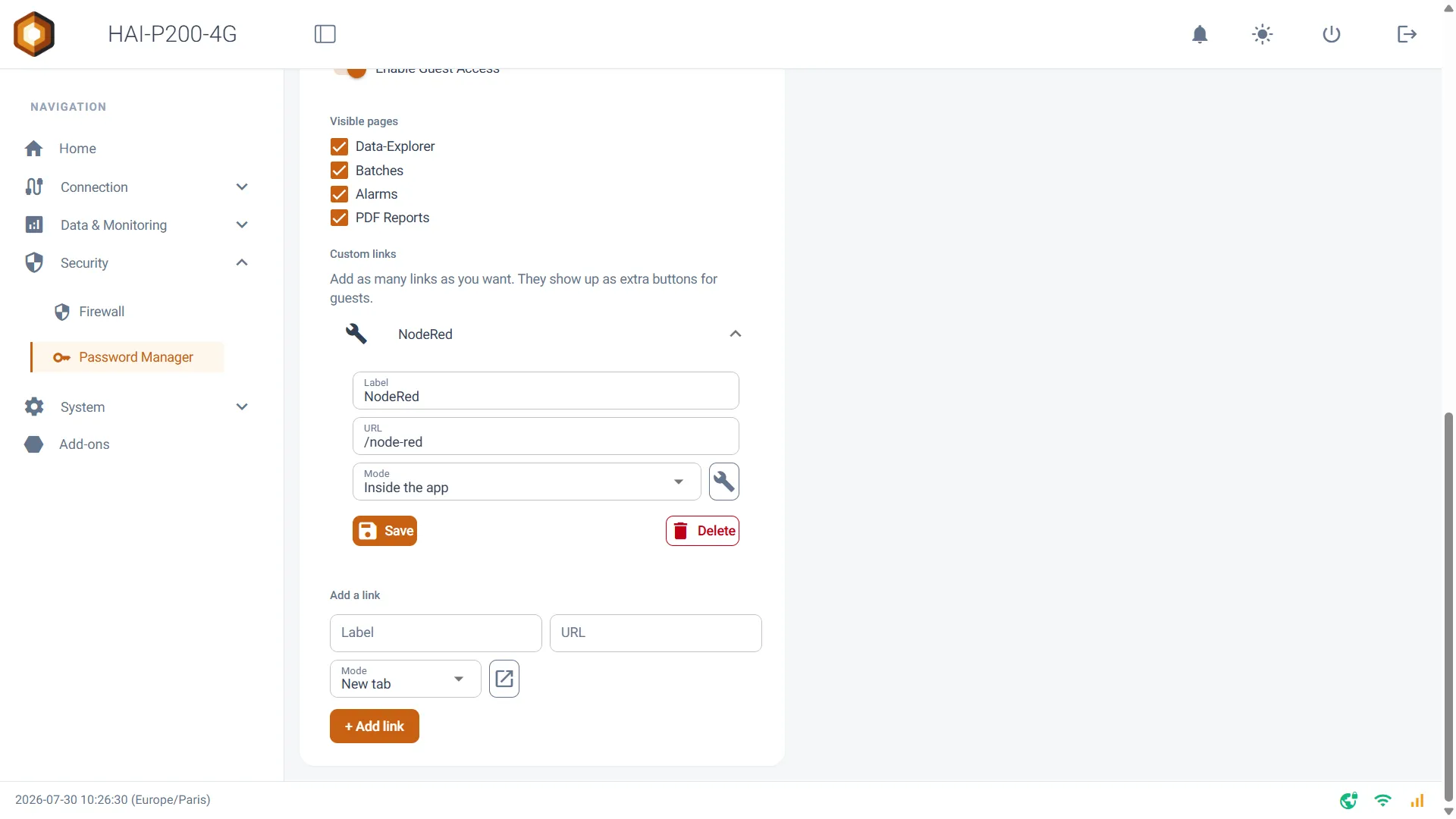
Links you have already created appear above as expandable panels. Click a panel to change its label, its URL, its mode or its icon, then confirm with Save — or remove it with Delete.
Logging in as a guest
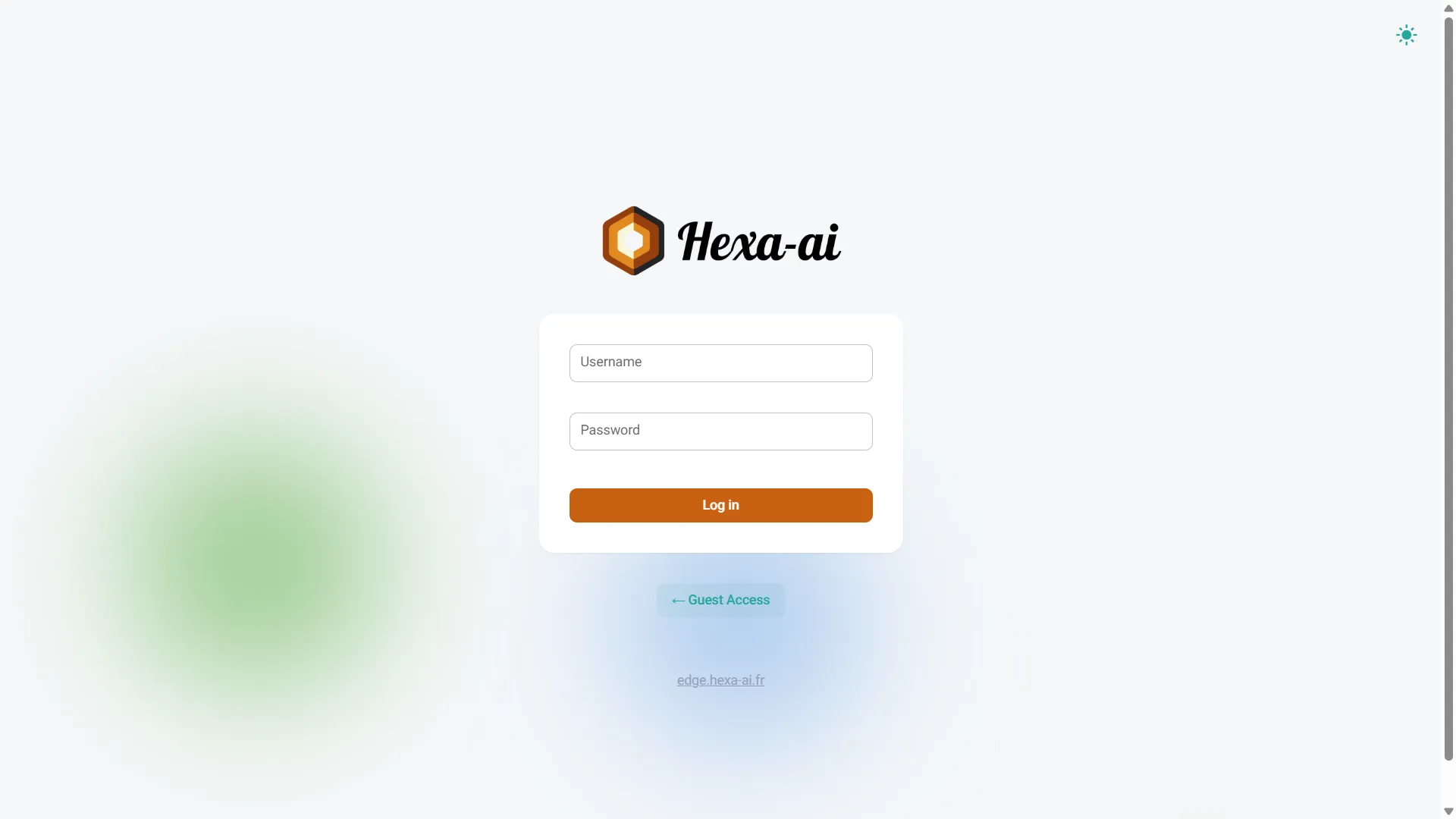
Section titled “Logging in as a guest”Once Guest Access is enabled, a ← Guest Access button appears on the login page, below the credentials form. That button is invisible while the feature is off.
Clicking it takes the user straight to the first authorised page, with no password to type.
The guest interface
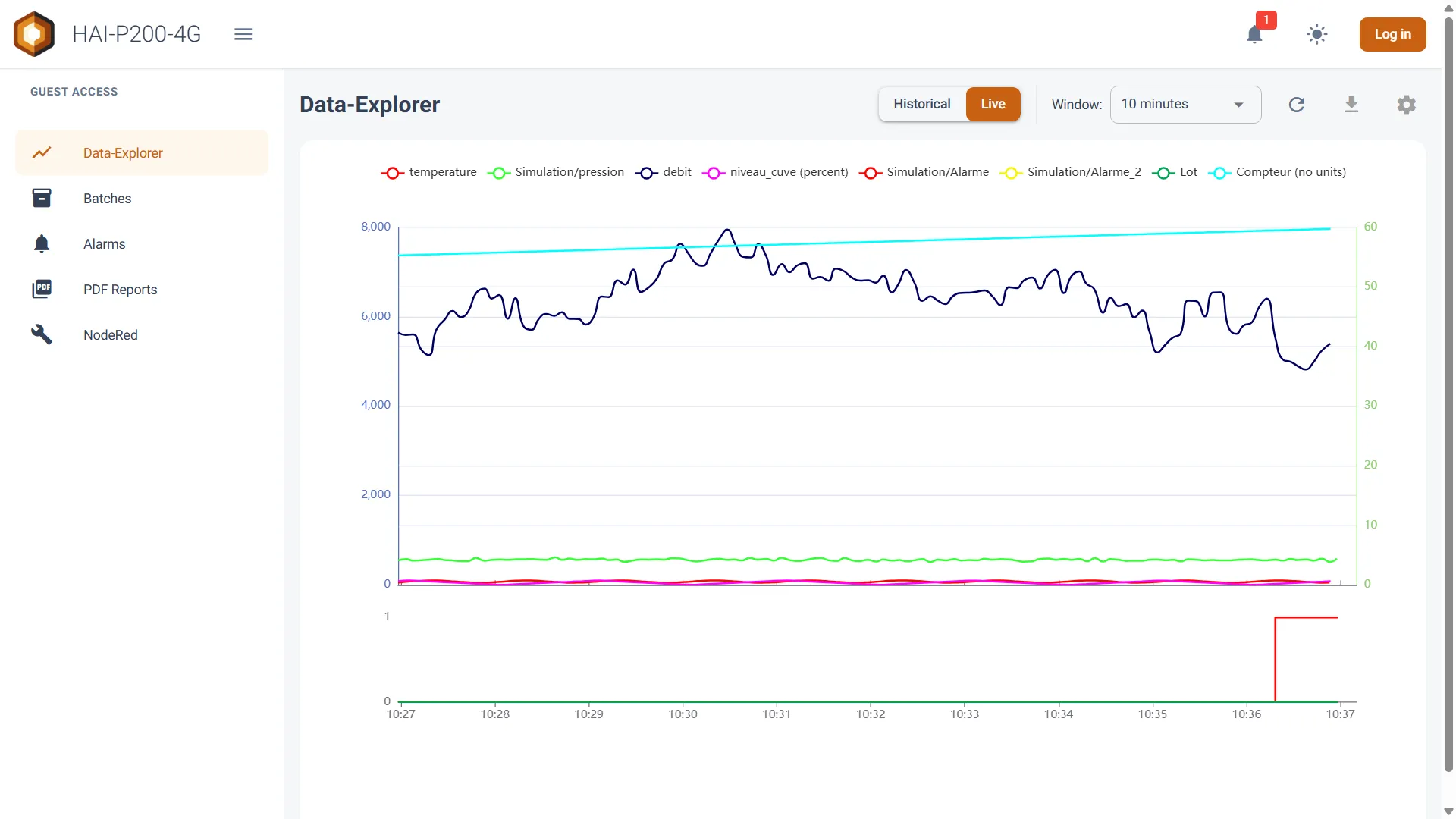
Section titled “The guest interface”Guests land on a stripped-down interface, distinct from the administrator one:
- A header carrying the controller’s name, with a menu button, an alarm bell whose red badge shows the number of active alarms (refreshed automatically), a dark / light mode toggle, and a Log in button to return to the administrator login page at any time.
- A side menu titled Guest Access, listing only the pages you ticked, followed by your custom links.
No configuration menu and no administration section is reachable from that interface.
What a guest can and cannot do
Section titled “What a guest can and cannot do”The exposed pages remain fully functional for viewing:
- On the Alarms page: the Live and Historical modes, the filters, the period selection and Root Cause Analysis (RCA) are all available.
- On the Data-Explorer: plotting curves, display settings and CSV export stay accessible, but a guest cannot save a configuration.
- On PDF Reports: consulting and downloading reports is possible, but a guest cannot delete a report.