PDF reports
Welcome to this guide to the PDF Reports page. This module gathers every report your system generates automatically — daily, weekly or end-of-batch. It lets you view them straight from the interface, download them or manage them easily.
Prerequisites
Section titled “Prerequisites”-
The HAI-P200-4G controller
-
HAI-OS
-
Report generation enabled in the Notifications menu (Daily, Weekly or Batch).
What is the PDF Reports page?
Section titled “What is the PDF Reports page?”The PDF Reports page is your controller’s central archive. Rather than hunting for reports in your mailbox alone, HAI-OS saves a local PDF copy of every report it generates. You can find them again, read them on the machine’s screen, and export them at any time.
Browsing between report types
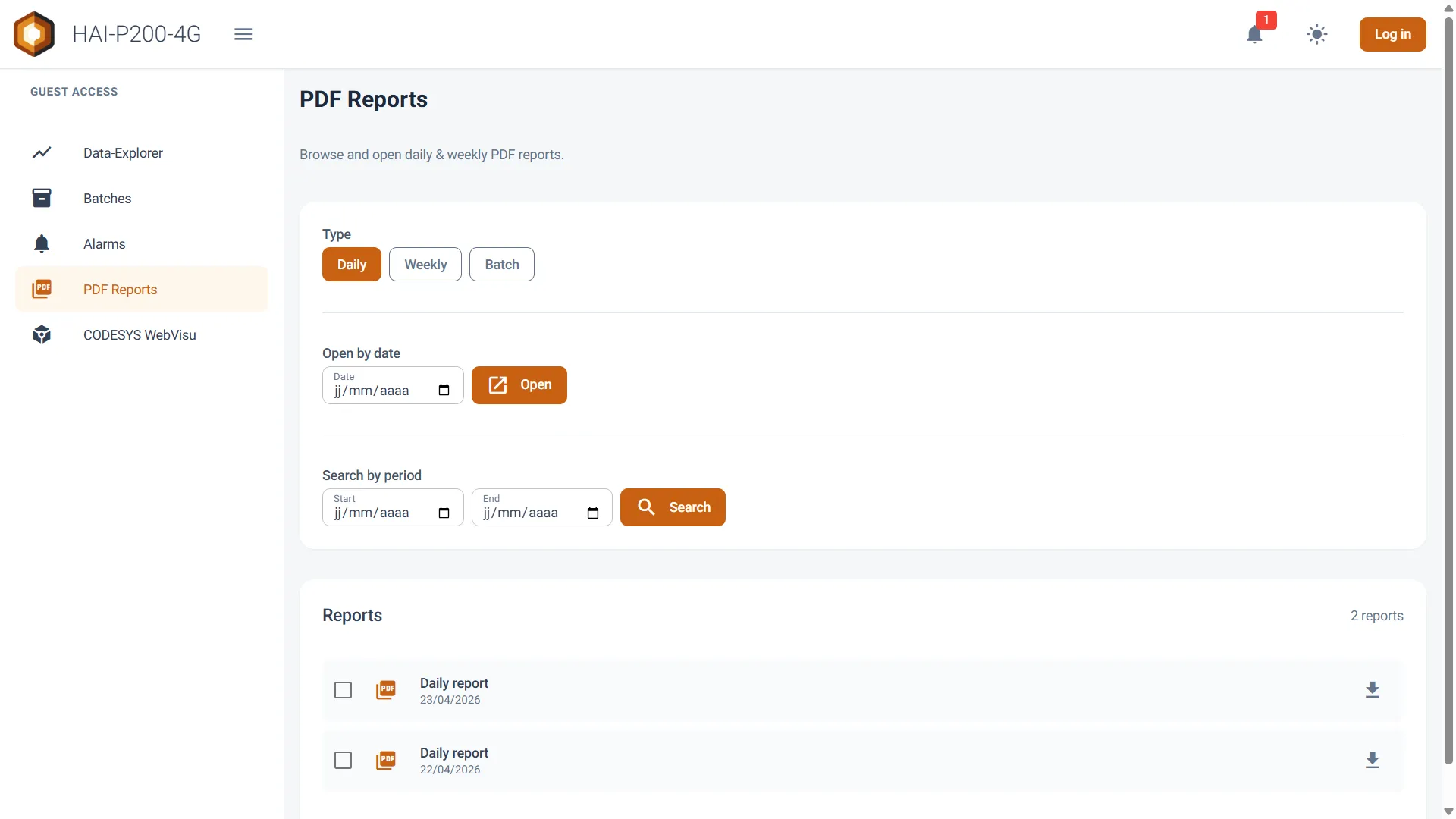
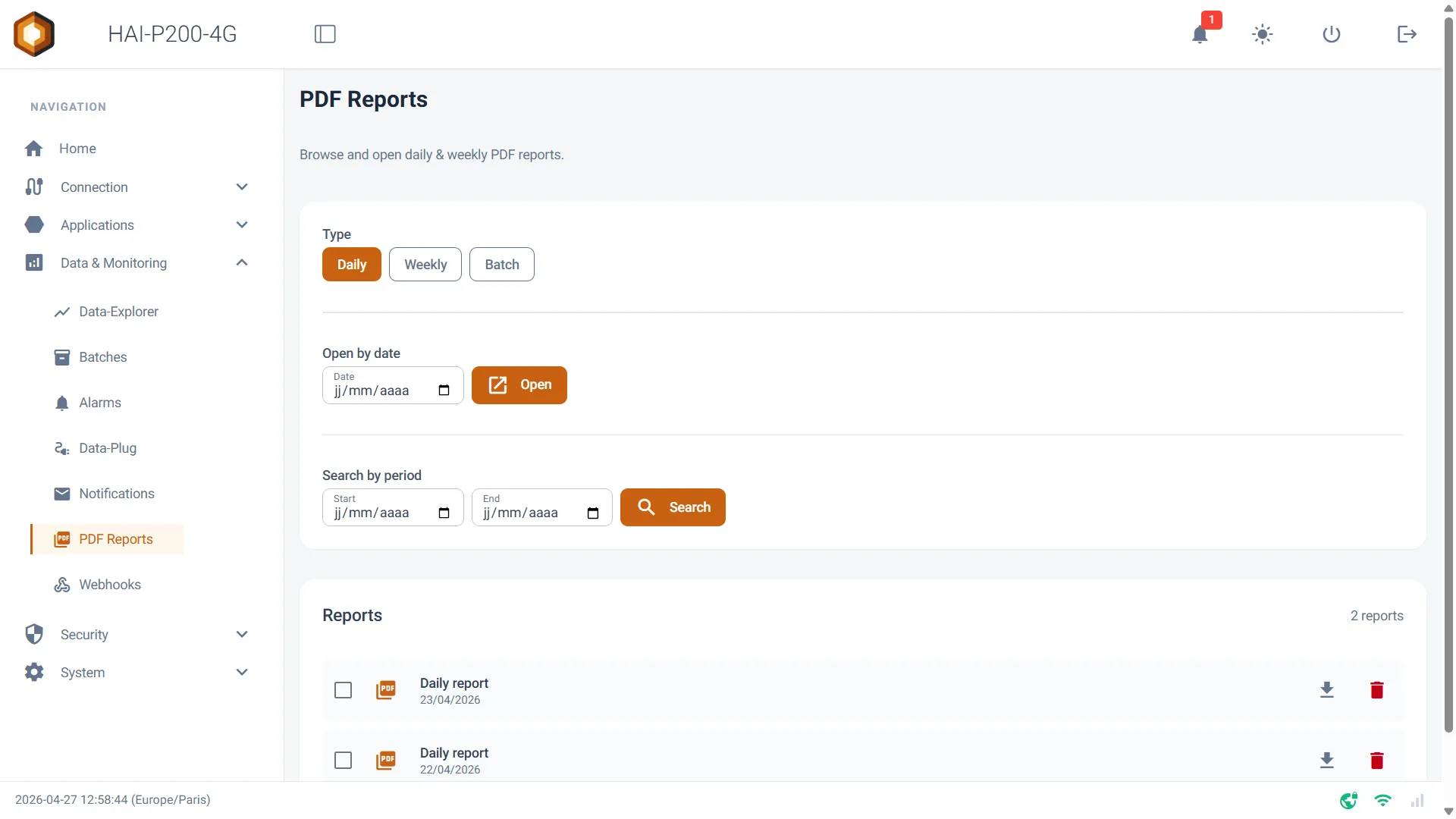
Section titled “Browsing between report types”At the top of the page, a configuration panel lets you switch instantly between the report categories available on your machine:
-
Daily: the reports generated every day.
-
Weekly: the weekly summaries.
-
Batch: the reports generated at the end of each production cycle, tied to the Batches page.
Searching and filtering
Section titled “Searching and filtering”Two search tools help you find a specific document in the archive:
-
Open by date: pick a date in the calendar and click Open. If a single report matches that day, it opens immediately on screen. If several match, the table is filtered to show them.
-
Search by period: set a Start and an End date, then click Search to list every report generated in that interval.
Viewing and individual actions
Section titled “Viewing and individual actions”In the Reports table, each row is a file. Clicking a row lets you act on the document:
-
Built-in viewer: click anywhere on a report’s row to open an overlay containing the PDF reader. You can read the document without leaving the interface, or click the icon in the top right (↗️) to open it in a new tab.
-
Download button (⬇️): on the right of the row, it downloads the PDF file to your computer or tablet.
-
Delete button (🗑️): permanently erases the report from the controller’s memory.
Bulk actions
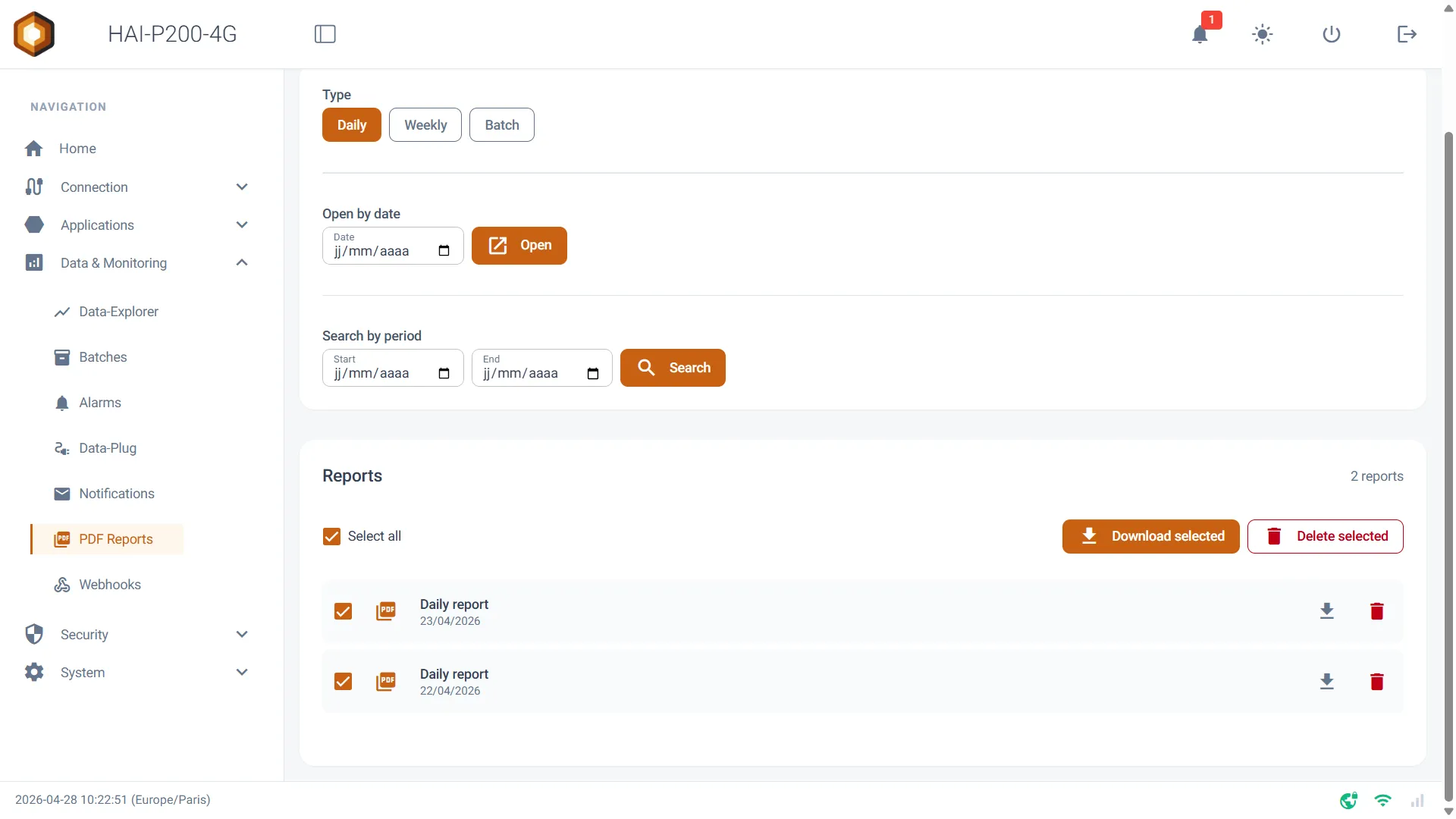
Section titled “Bulk actions”To export or clean up several reports at once, use the checkboxes on the left of each row, or the Select all box. Once a selection is made, an action bar appears:
-
Download selected: downloads every selected report, gathered in a single compressed folder (reports.zip).
-
Delete selected: deletes all ticked reports in one action, after confirmation.
Guest access
Section titled “Guest access”The PDF Reports page works fully in open-access mode. If guest access is enabled — through Security > Password Manager — an unauthenticated operator can consult the report archive and download files. Security note: in guest mode, every delete button, individual or bulk, is strictly hidden and disabled to protect your archive.