Box page
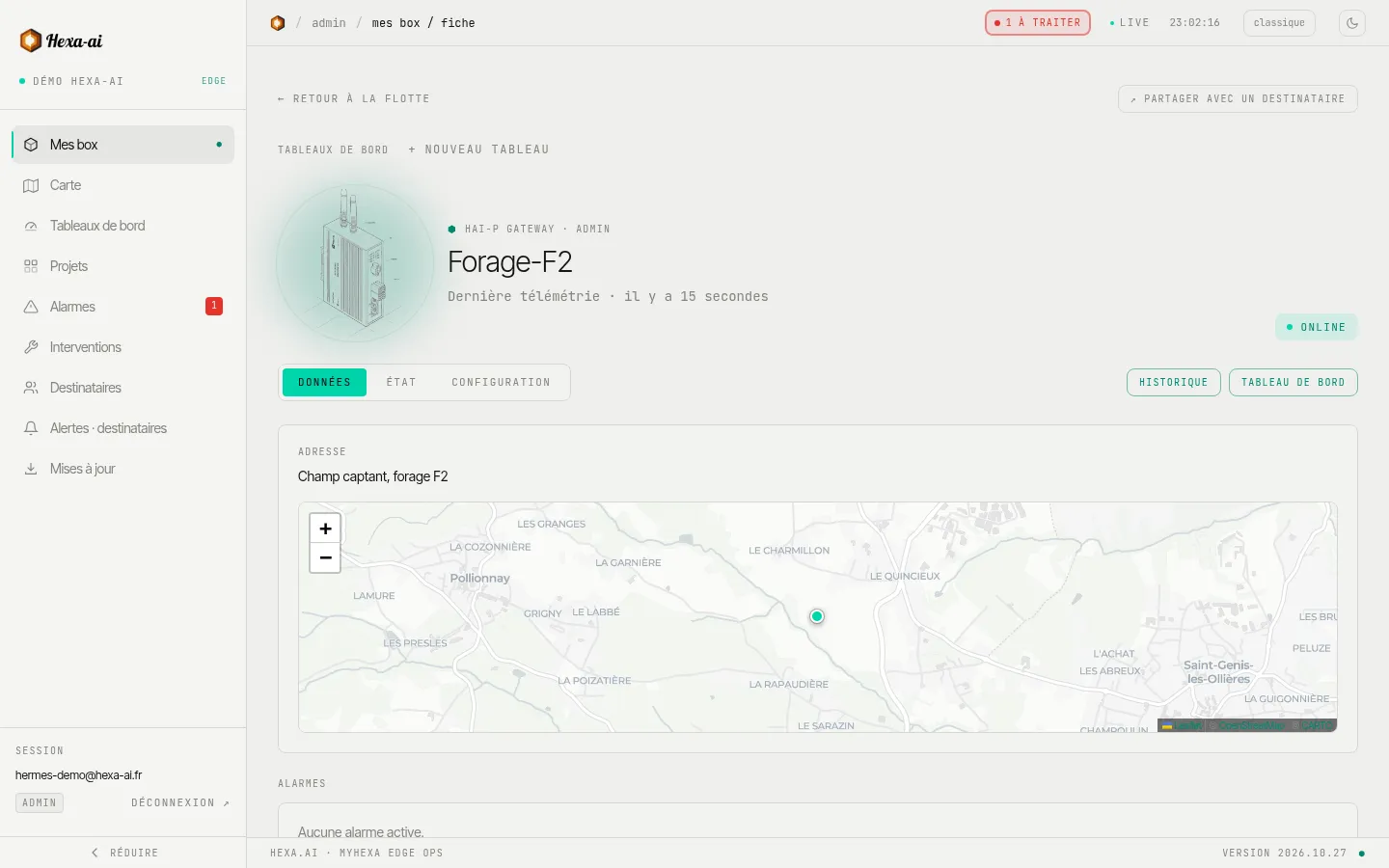
The box page brings together everything about a box.
Header
Section titled “Header”The box name, its model, the time of the last telemetry and its status (online / offline). Two buttons lead to its history and its dashboard.
The tabs
Section titled “The tabs”- Données (Data): address and map, active alarms, then the current values sorted into Mesures (Measurements), Compteurs (Counters) and États (States).
- État (Status): software version, uptime, time zone (Timezone), network interfaces (Ethernet, Wi-Fi, 4G) and services.
- Configuration: the box address, its field intervention QR code and, depending on the box, remote access to the PLC screen (VNC). Only administrators can make changes.
Documents
Section titled “Documents”Attach useful documents to the box: plan électrique (electrical diagram), analyse fonctionnelle (functional analysis), manuel / notice (manual / leaflet), photo installation (installation photo), or other. Only administrators can add and edit them.
- In the Documents section, click + Ajouter (Add).
- Choose the file, its type and, if needed, a description.
- Tick Accessible via QR code to make it visible on the intervention page (without logging in).
A document can be switched from public to private (and back) at any time, with the → Privé (→ Private) and → Public buttons.
Intervention page and QR code
Section titled “Intervention page and QR code”Each box has a public page, opened by scanning its QR code, without a myHexa account. You get the QR code from the Configuration tab of the box page: print it and stick it on the cabinet. A technician on site can:
- view the documents marked as public;
- report an intervention or flag a fault: name, email or phone number, severity, category, comment and up to 5 photos (compressed on the phone before sending).
Reports arrive in Interventions.
Share the box with a person
Section titled “Share the box with a person”Partager avec un destinataire (Share with a recipient) lets an administrator give access to this box to a person already registered as a recipient (see Users and access), using their email address. The Partages actifs (Active shares) list lets you remove access.